Components
Title description, Dec 7, 2017
What you need.
The Motherboard: Sometimes called the logic board, this component is like the nervous system of your computer. It’s where all the parts come together and communicate through its circuits. This large printed circuit board is home to the CPU and other vital internal hardware. It serves as the main hub for all the hardware components to connect. It also includes memory slots, expansion slots, and various connectors, ensuring smooth data flow between all the devices.
The CPU acts as the brain of your computer, processing and executing instructions from different programs. Its clock speed is a major factor in how well your computer performs and processes information. To maintain optimal temperatures, CPUs need a heat sink and a cooling fan. The performance of the CPU is essential for the overall speed and efficiency of your system. Modern CPUs often feature multiple cores.
Random Access Memory, known as RAM, is the area in your computer where active data from software programs is stored and processed. This memory is temporary, or volatile, so it disappears when you shut down your machine. RAM is essential for your computer's performance; the more you have, the more data it can handle, making everything run faster and more smoothly.
Hard Disk Drive: Often just called a "hard drive," this is a storage device that holds both permanent and temporary data in different forms, such as programs, operating systems, device files, database files, and images./Solid-State Drives (SSD): SSDs are a type of storage that relies on NAND flash memory. They’re non-volatile, so your data stays safe even when the computer is shut down.
This chip, known as a graphics card or processing unit, takes care of graphics of the games you play or the work you produce and often works alongside the main CPU as an additional component.
Power Supply: It's a piece of tech that serves as a voltage regulator, stepping down and inverting voltage as needed. To put it simply, it changes the wall current (110 volts at 60 cycles) into the exact voltage your hardware needs to operate.
Steps
Title description, 2024
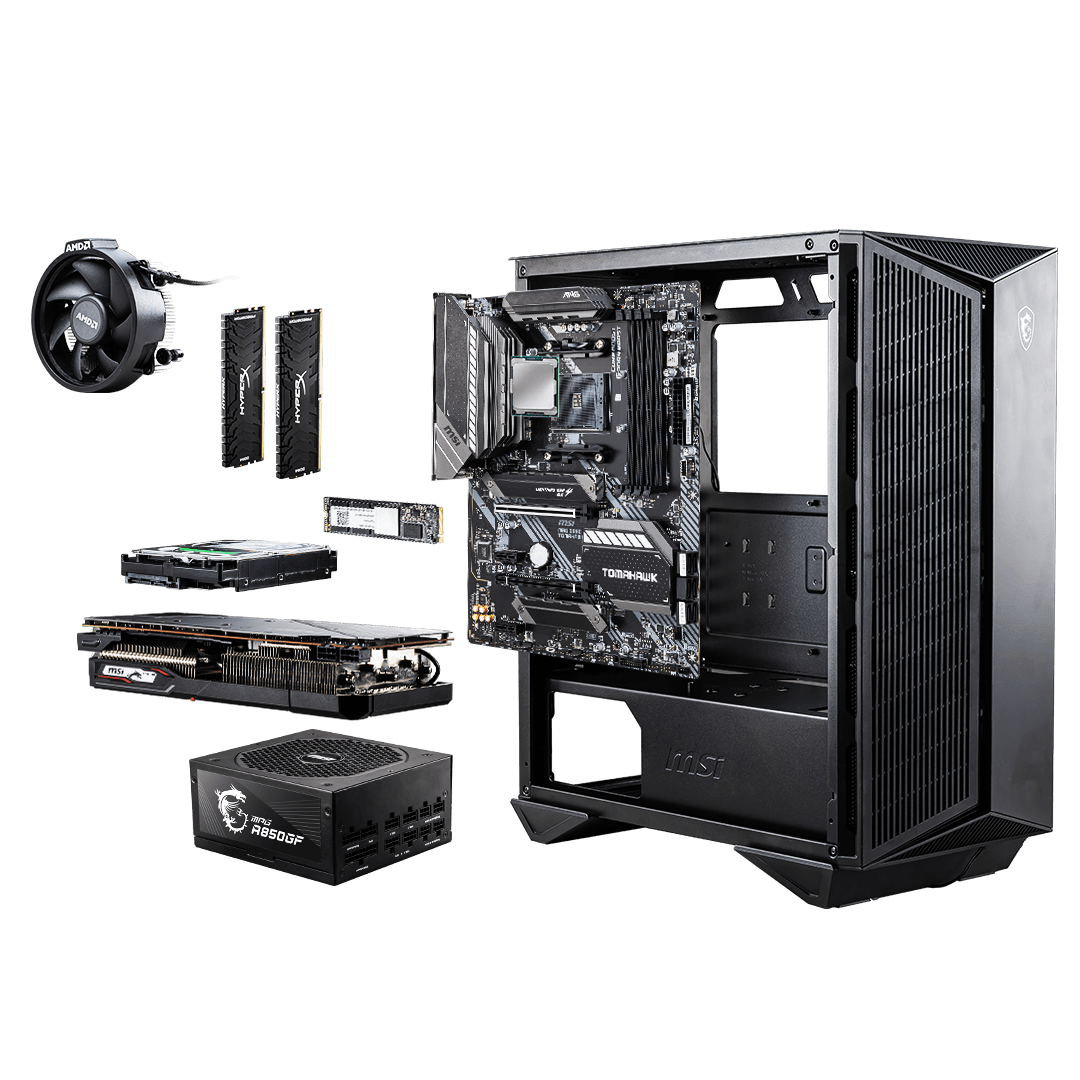
The first step is preparation. You have to pick the right parts for the PC, Usually this takes anywhere from a day to a week if you're being thorough. One good website for this is PcpartPicker. it will tell you if the components you are picking are compatible or not. Once you have picked the parts and have them in your possesion, move to the next step.
The next step of the build is CPU installation. Unbox your motherboard and your CPU, then put the CPU into the socket provided on the motherboard. While you are doing this make sure to be careful to not damage the pins on the CPU.
The next step is to install the RAM memory. First unbox the RAM memory sticks. Place them into the sockets on the board, and be careful not to damage them or the board.
Next step is to install the M.2 SSD Storage. Unbox the storage sticks and place them into the sockets. I will repeat the same thing again, BE VERY CAREFUL because these are expensive parts. If you want somthing less expensive and not as efficient you should go for a hard drive. Just connect it to the port and if there is no compatible port you have to get a adapter.
Next step is to install a CPU cooler. unbox the CPU cooler(liquid cooler or fan) and keep it to the side. Then take the thermal paste and apply a small amount on the CPU on the top. Then put the CPU cooler on top and screw it in. This will keep the CPU from overheating.
The next step is to install the motherboard into the case. Unbox the case and place the motherboard in while being careful. Screw it down and make sure it isnt too tight because then the motherboard will crack.
Next step is the GPU installation. Unbox the GPU and make sure to handle it carefully because it can tend to be one of the most expensive parts of the build. Place it into the slot on the case and screw it in. Then plug the PCIe wires into the motherboard.
The next step is to install the power supply. Unbox the power Supply and mount it into the case. Connect all the wires and make sure to handle it with care.
Connect the wires from the front panel to the motherboard and then clean up the wires and clean up the system.
The last step is to get an operating system. Power on the pc and go onto the web and download the operating system you want. you can choose from Windows, linux, or Ubuntu.
Cool Builds to check out
Low-End PC
Title description, Nov 5, 2024
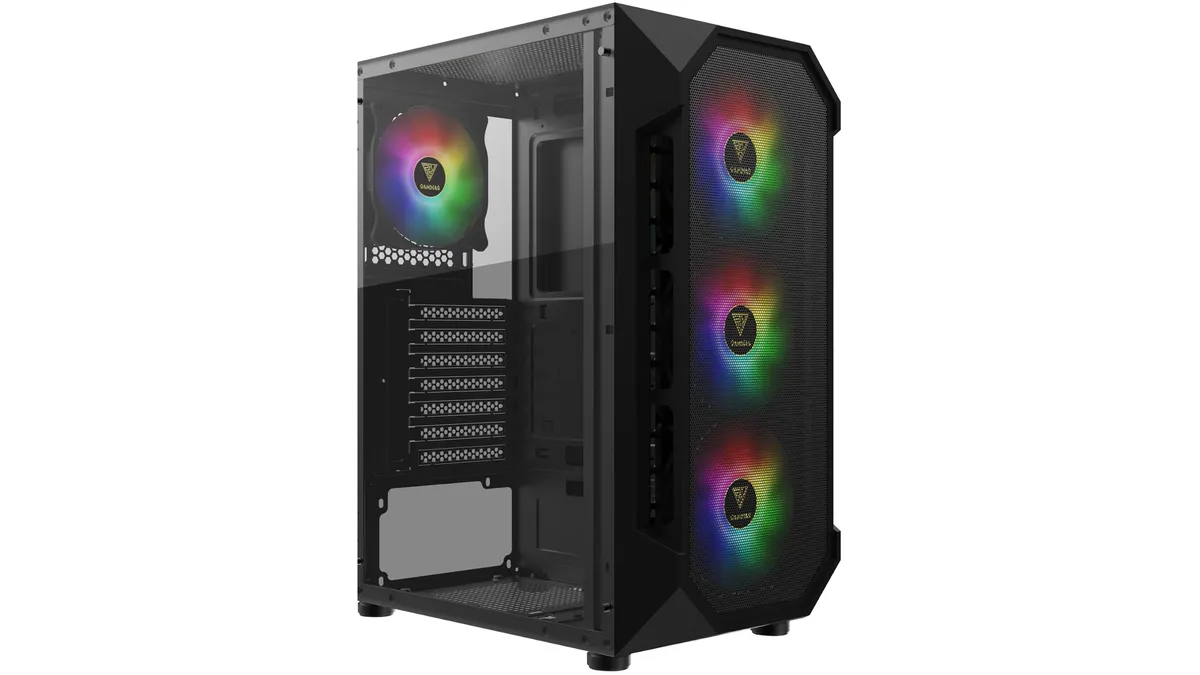
- Intel Core i5-14400F
- ASRock B760M-HDV
- Nvidia RTX 4060
- TeamGroup T-Force Vulcan Z DDR4 32GB (2x16GB)
- Samsung WD Black SN770 (1TB)
- Gamdias Aura GC1
- Thermaltake Smart 700W
- AMD Ryzen 7 5700X3d
- Gigabyte B550 UD AC
- Nvidia RTX 4060 Ti
- Crucial RAM 32GB Kit (2x16GB) DDR4 3200
- WD Blue SN580 (2TB)
- Phanteks XT Pro
- Corsair CX750M
- ID-Cooling FrostFlow 280mm
- AMD Ryzen 9 7900X3D
- Gigabyte B650M Gaming Plus WiFi
- Nvidia RTX 4070 Ti Super
- G.Skill Trident Z5 RGB Series 32GB (2 x 16GB) DDR5 6000
- WD Black SN850X (2TB)
- Hyte Y40
- Corsair RM750e
- Iceberg Thermal IceFLOE Oasis 360mm
This Is A good 700$ Pc. It uses the Intel Core i5-14400F as its CPU. It uses the ASRock B760M-HDV as its Motherboard. It uses the Nvidia RTX 4060 as its GPU. It uses the TeamGroup T-Force Vulcan Z DDR4 32GB (2x16GB) as its RAM. It uses the Samsung WD Black SN770 (1TB) as its storage. It uses the Gamdias Aura GC1 as its case. Finnaly it uses the Thermaltake Smart 700W as its Power Supply.
Middle-End PC
Title description, Nov 5, 2024
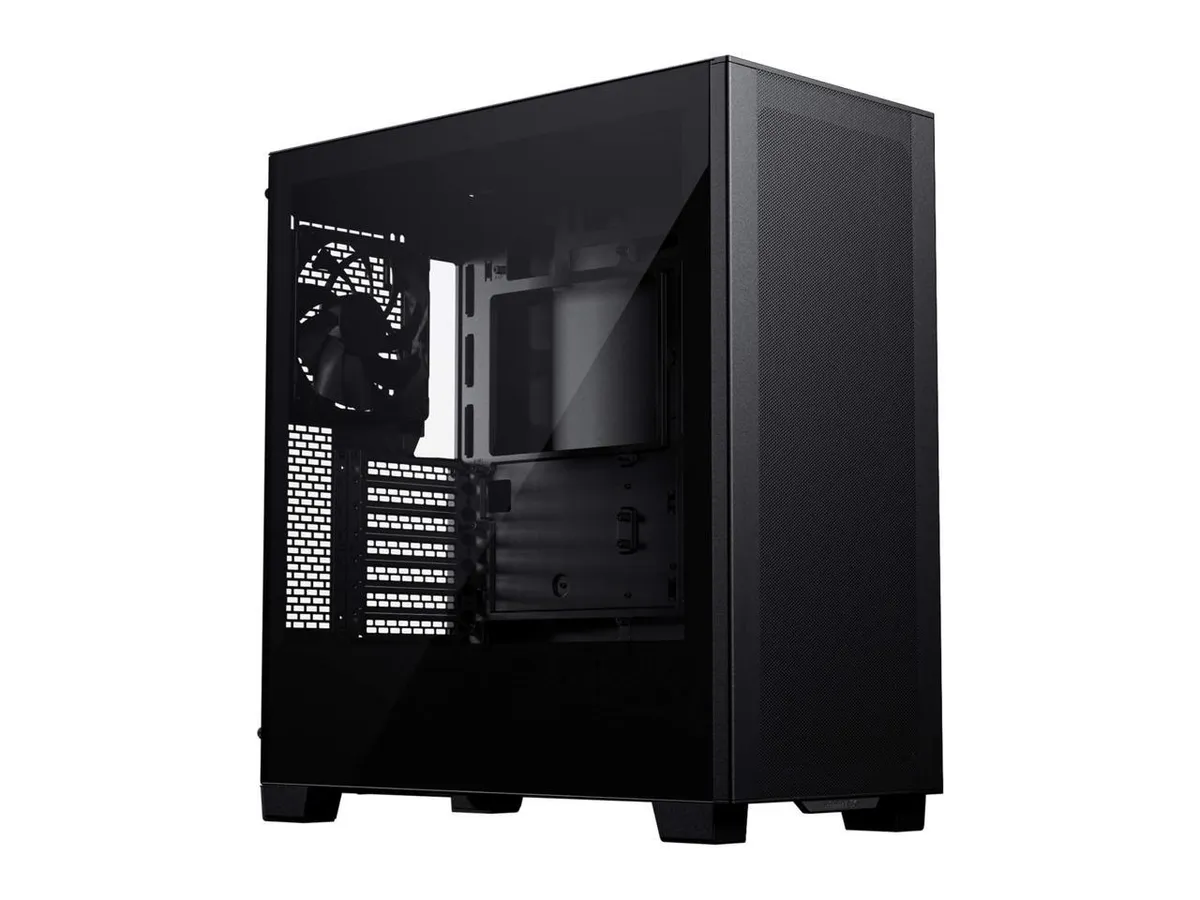
This Is A good 1000$ Pc. It uses the AMD Ryzen 7 5700X3d as its CPU. It uses the Gigabyte B550 UD AC as its Motherboard. It uses the Nvidia RTX 4060 Ti as its GPU. It uses the Crucial RAM 32GB Kit (2x16GB) DDR4 3200 as its RAM. It uses the WD Blue SN580 (2TB) as its storage. It uses the Phanteks XT Pro as its case. Next, it uses the Corsair CX750M as its Power Supply. Finally It uses the ID-Cooling FrostFlow 280mm as its CPU cooler
High-End PC
Title description, Nov 5, 2024
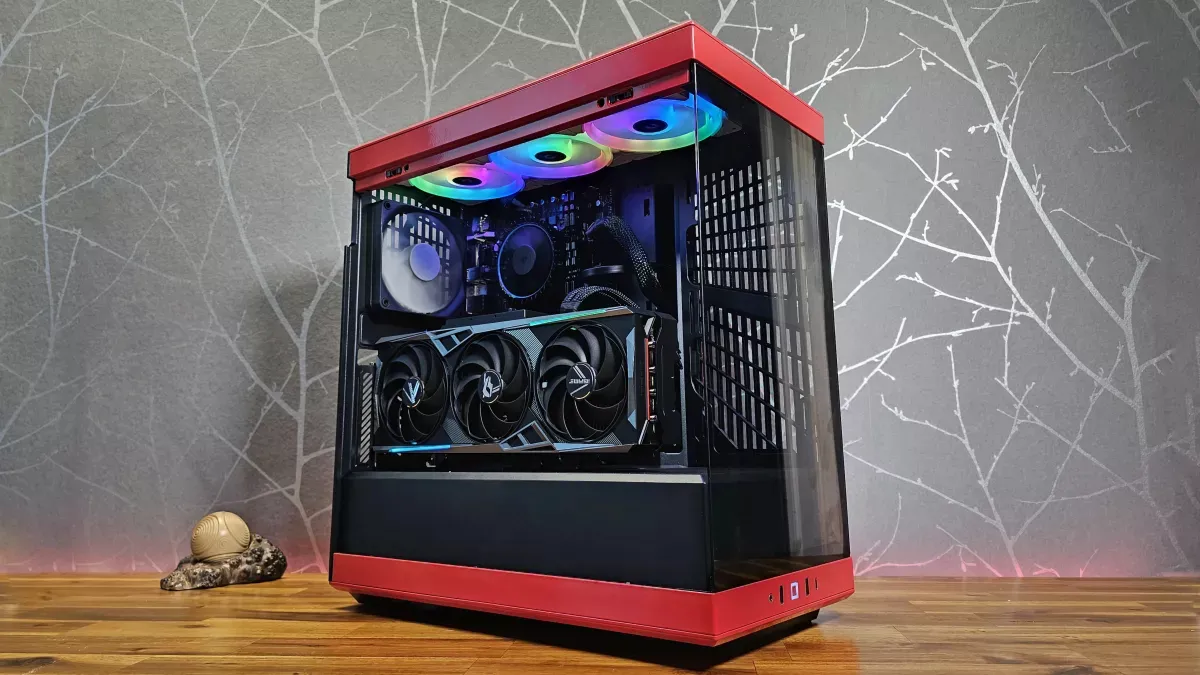
This Is A good 2000$ Pc. It uses the AMD Ryzen 7 5700X3d as its CPU. It uses the Gigabyte B650M Gaming Plus WiFi as its Motherboard. It uses the Nvidia RTX 4070 Ti Super as its GPU. It uses the G.Skill Trident Z5 RGB Series 32GB (2 x 16GB) DDR5 6000 as its RAM. It uses the WD Black SN850X (2TB) as its storage. It uses the Hyte Y40 as its case. Next, it uses the Corsair RM750e as its Power Supply. Finally It uses the Iceberg Thermal IceFLOE Oasis 360mm as its CPU cooler
About Me
I have done a lot of research. And I am very qualified to teach you since I have built my own and have studied computers for a long time.